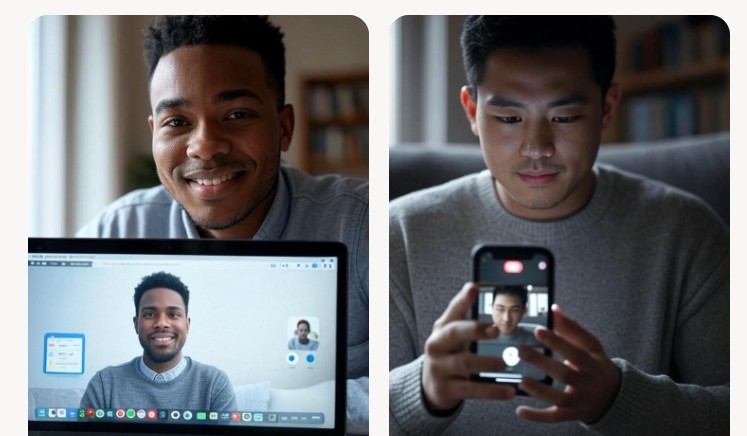
Record Google Meet on Any Device with Audio
Recording Google Meet sessions is a valuable tool for preserving important discussions, whether for work, education, or personal use. Capturing both video and audio ensures you can revisit key points, share meetings with absent colleagues, or create content for later use. This guide provides step-by-step instructions for recording Google Meet on various devices, including desktops and mobiles, using built-in features or third-party tools. Follow these methods to ensure high-quality recordings with clear audio.
Recording Google Meet on Desktop
Recording Google Meet on a desktop is straightforward if you have the right permissions and tools. Google Meet’s built-in recording feature is available for users with specific Google Workspace editions, such as Business Standard, Enterprise, or Education Plus. To start, join or host a Google Meet session on your computer. Click the “Activities” button in the bottom-right corner, then select “Recording” and click “Start.” A red “recording” icon will appear in the top-left corner, indicating the session is being recorded. Stop the recording by clicking “Stop Recording” under the same menu. The file, which includes video, audio, and any shared screens, is saved to the meeting organizer’s Google Drive in the “Meet Recordings” folder. An email with the recording link is sent to the host and the person who initiated the recording.
If you lack recording permissions or a compatible Workspace plan, third-party screen recording software like OBS Studio, Bandicam, or Screencastify can be used. These tools allow you to capture the entire screen or a specific window, including system audio and microphone input. For example, with Bandicam, select the “Specific window” option to record only the Google Meet browser window, ensuring both participant voices and system audio are captured. Always test your audio settings beforehand to guarantee clear sound quality.
Recording Google Meet on Mobile Devices
Google Meet does not offer built-in recording on mobile devices, but you can use native screen recording features on Android and iOS. For Android devices running Android 11 or later, swipe down to access the Quick Settings panel and tap “Screen Recorder.” Choose “Record one app,” select Google Meet, and enable “Device audio and microphone” to capture both meeting audio and your voice. Start the recording, join the meeting, and stop it via the red recording button. The video saves to your device’s gallery under “Screen Recordings.”
For iOS, swipe down (or up on older devices) to open the Control Center and tap the “Screen Recording” button. Start the recording, join the Google Meet session, and stop it via the red status bar. Note that iOS screen recording captures microphone audio but may not directly record app audio unless the meeting audio is audible through your device’s speakers. Using Speaker Mode can help, though audio quality may vary. Alternatively, third-party apps like Screen Recorder – XRecorder can record both video and audio on mobile devices, offering flexibility for users without Workspace permissions. Always inform participants before recording to respect privacy.
Tips for High-Quality Recordings and Troubleshooting
To ensure high-quality Google Meet recordings, optimize your setup. Use a stable internet connection to avoid interruptions, and position your camera at eye level with good lighting for clear video. A high-quality microphone or headset enhances audio clarity, especially when using third-party tools. For desktop recordings, tools like Krisp can filter background noise, improving audio quality for transcription or playback. Check your Google Drive storage, as recordings can be large, and ensure you have enough space. If the “Record” option is unavailable, verify your Workspace plan or permissions with your administrator. Free Google accounts cannot use the built-in recording feature, so third-party tools are necessary.
Read more: Search Engine Optimization Services | Top SMO Company in Varanasi
When recording without permission, tools like Vmaker or Notta allow participants to capture meetings discreetly, but always seek consent to comply with privacy laws. For advanced features, Notta can transcribe meetings in real-time, saving transcripts to your dashboard for easy sharing. Test your setup before the meeting to avoid technical issues, and consider enabling captions for accessibility. Recordings are invaluable for documentation, training, or sharing with absent team members, making them a powerful tool for collaboration.